

On this page
Thirty-five updates landed this fortnight, and workflows got the most attention. Deals and tasks can now run through workflows without a contact attached, the split action can share leads evenly or by weighting, and you can ask Workflow AI what happened to a contact instead of digging through logs. Ad Manager adds ChatGPT as an ad platform, events get an attendee app inside the client portal, and AI Studio sites can now be built and published from an Ask AI chat. Here is everything from 9 to 22 November.
Workflows
Ask Workflow AI what happened to a contact
The Workflow AI chat inside each workflow can now answer questions about what actually happened. Name a contact and it shows their latest run step by step, with the time and outcome of each step, and highlights that path on the canvas. It can also follow one contact across every workflow they have entered, show who edited a workflow and what changed between versions, with a view on whether an edit caused a problem, compare two workflows on enrolments, completions and error rates, and rank your workflows by completion rate. Ask for a PDF and the analysis comes with a download card. Open a workflow, click the Workflow AI icon in the left bar and choose the Chat tab. For a property services business with a dozen follow-up workflows, "why did this lead never get a quote reminder?" becomes one question instead of an afternoon in the logs. More detail
Clean up old workflows and empty folders
Workflow Maps has a new Cleanup view that lists workflows and folders worth reviewing: workflows still carrying a default name, workflows with no enrolments in the last 60 days, and empty folders. You review each one and confirm before anything is deleted, and deleting follows your normal access permissions. Go to Automation, Workflows, Workflow Maps, then open Cleanup in the left rail. A workflow with no recent enrolments may still be needed for seasonal work, such as a pre-winter gutter cleaning campaign, so check its purpose before removing it. For a business whose account has built up years of test and one-off workflows, it is a quick place to start tidying. More detail
Share leads evenly, or by weighting, with the split action
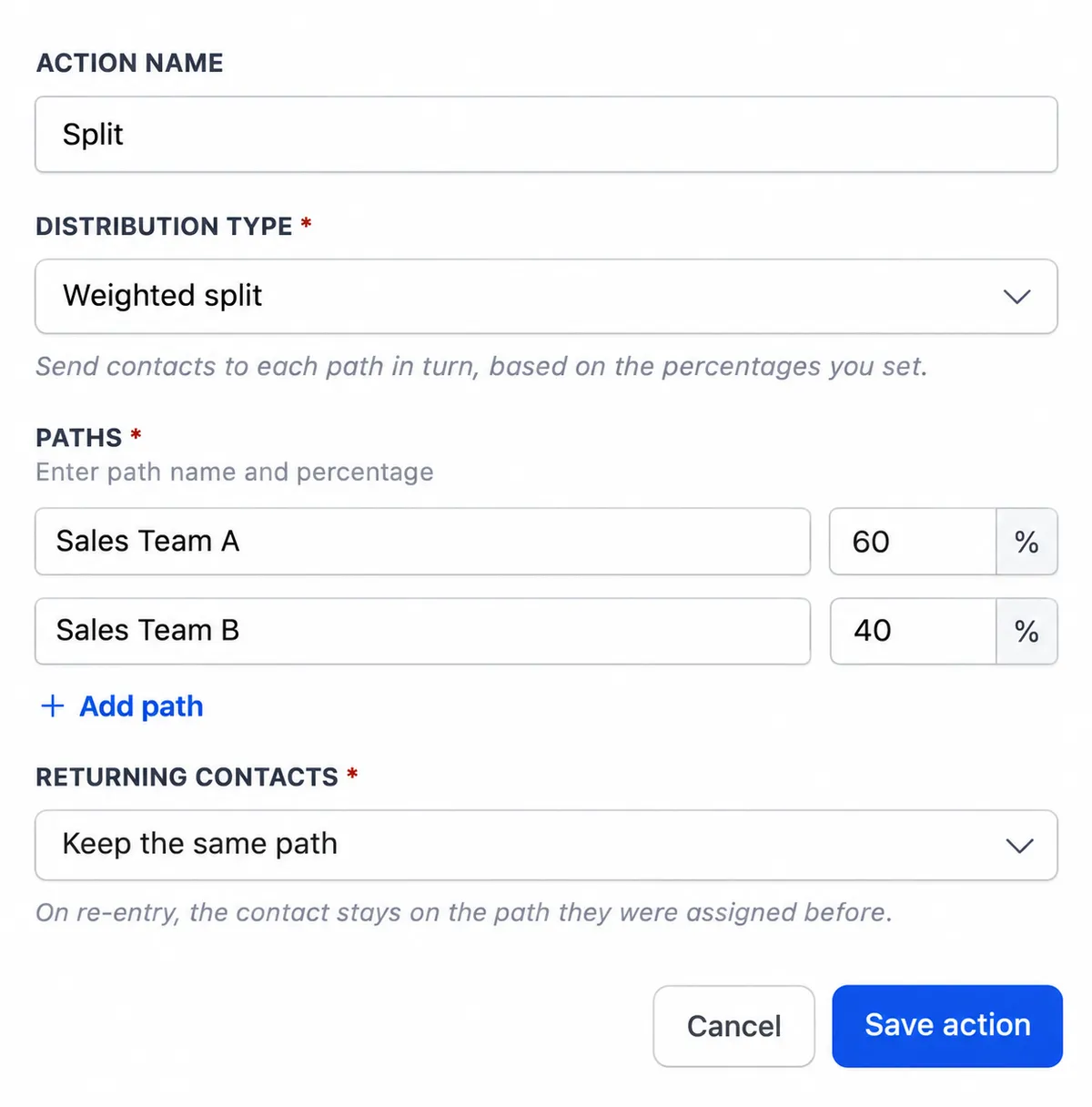
The Split action in workflows has two new distribution types alongside Random split. Even split sends contacts to each path in turn, so the groups stay balanced as contacts arrive, which a random split with equal percentages does not guarantee with small numbers. Weighted split also takes turns, but by the percentages you set, so a 60/40 split sends three of every five contacts down one path and two down the other. Choose the type under Distribution Type when adding or editing a Split action, and for a weighted split enter whole percentages that add up to 100. Once contacts have entered an even or weighted split, its settings are locked until you reset the test, which clears its statistics. For a property services business sharing new enquiries between two estimators or two crews, leads can now be divided by capacity rather than by chance. More detail
Suggested next steps for inbound webhooks
When you add an Inbound Webhook trigger to a workflow and save it with a sample request, the builder now suggests the actions you are most likely to need next: create or find a contact, create or find an opportunity, or add a task. It saves hunting through the full action list for the record your workflow needs. Inbound Webhook is a premium trigger, charged per execution. For a business receiving jobs from an outside booking system or lead supplier, setting up the workflow that catches them takes fewer steps. More detail
Workflows for deals and tasks with no contact
Opportunities and tasks can now enter workflows on their own, without an associated contact. Opportunity triggers fire when a deal is created, changes, moves stage, changes status or goes stale, task triggers cover a task being added, completed or due for a reminder, and a Custom date reminder can now run from a date field on an opportunity. Workflows for deals with no contact were listed as a private beta in our LevelUp 2026 post. Steps that rely on contact details, such as messaging the contact, have nothing to work with when there is no contact, so review those before you build. For a property services business tracking commercial jobs or internal maintenance tasks that are not tied to one person, follow-up can now be automated from the deal or task itself. More detail
Find a deal or task in workflow history
With deals and tasks able to run through workflows on their own, enrolment history and execution logs now show them alongside contacts. Choose All objects for a combined view, or Contacts, Opportunities or Tasks to focus on one type, then search for the record you want. The record column shows the type of each record next to its name. Open a workflow, go to its enrolment history or execution logs, and pick the object type. For a business automating its jobs pipeline, it answers "what did the workflow do with this deal?" without needing a contact to search by. More detail
Internal notifications without a contact
The Internal Notification action now works in workflows that run without a contact, such as those started by a contactless task or opportunity, or by an inbound webhook. Choose an in-app notification, email or SMS, then pick specific users or all users to receive it. The Assigned User recipient depends on a contact and its assigned user, so if either is missing that step is skipped and the workflow carries on, and contact fields in the message may stay blank. For a property services business, an outside system can now alert the operations team that a job request is ready for review without creating a placeholder contact. More detail
Workflow history now kept for 60 days
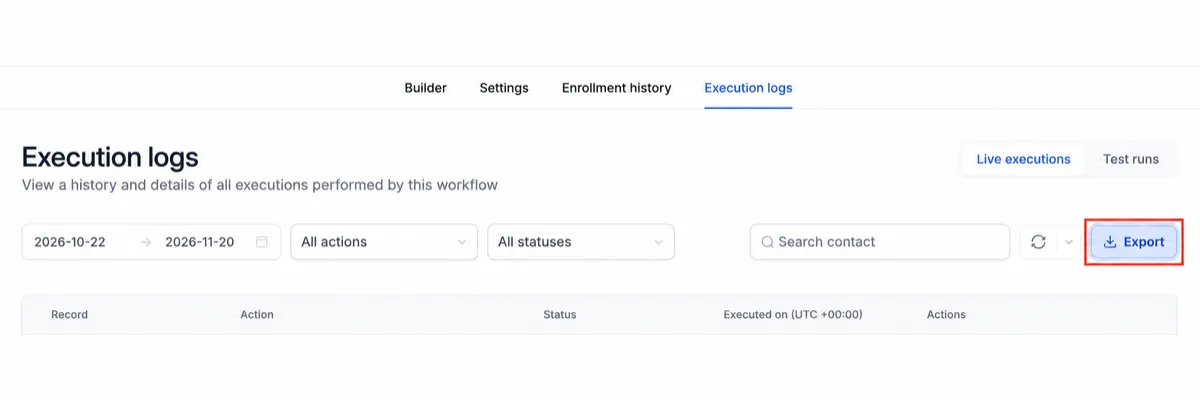
Execution logs and enrolment history now keep 60 days of workflow activity, up from 30, so a problem reported a month or more after it happened can still be traced. Execution logs can also be exported as a CSV file of the records matching your date range and filters, sent by email as a download link that lasts seven days. The export holds action and execution IDs only, with no personal information. The export button is available to the Clientflow team, so ask your usual contact if you need a copy. For a business checking why a reminder was missed last month, the record is now still there. More detail
WhatsApp workflows always send your latest templates and snippets
Edits to WhatsApp templates and snippets now flow straight into the messages your workflows send. A workflow sends the template's current content at the moment the message goes out, rather than the version that existed when the step was set up, and a variable added to a template later, such as the contact's first name, is filled in automatically. Snippets work the same way, so a price, offer or opening hours change only needs making in one place. Workflow steps using a snippet that were saved before this release need opening and saving once to switch this on. For a property services business running a seasonal offer over WhatsApp, changing the discount in one snippet updates every automated message that uses it. More detail
A typing indicator for WhatsApp replies
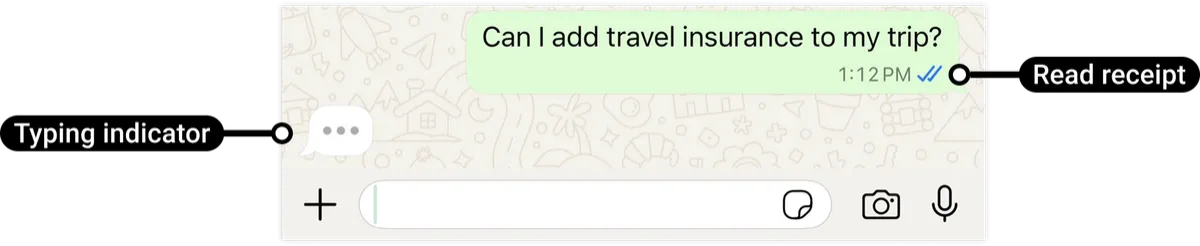
A new workflow action shows customers the familiar typing bubble in WhatsApp while your workflow or AI agent prepares a reply, so their message is not met with silence. Place it just before the step that sends the reply, such as an AI agent's answer or a lookup. The bubble disappears when the reply arrives, or after 25 seconds, whichever comes first. Showing it also marks the customer's message as read, with blue ticks, which is one reason it only appears where you add it. Search for typing indicator when adding an action to a workflow triggered by an incoming WhatsApp message, and only add it where a reply will actually follow. For a business answering quote questions on WhatsApp after hours, customers can see straight away that a reply is on its way. More detail
WhatsApp button and list replies now follow the right branch
When a contact taps a button or picks a list option in a WhatsApp message, the workflow now reliably continues down the branch for that option. Options that include custom values, such as an appointment time, were sometimes not matched before, so contacts who had already answered fell into the Timeout branch. Labels pushed past WhatsApp's limits by a custom value, 20 characters for a button and 24 for a list option, are now shortened with an ellipsis instead of the message failing to send, and they still route correctly. Nothing needs changing, as existing workflows already have the fix. For a business confirming appointments by WhatsApp, a customer who taps "Confirm 3:30 PM" is no longer chased for a reply they already gave. More detail
SMS and email
Fewer SMS sending pauses, in a phased rollout
The safeguards that pause SMS sending when message quality drops are being made fairer, with early testing showing 80% fewer restrictions. Quality is judged over a rolling seven days. A warning comes when opt-outs pass 4% or carrier filtering passes 15%, and a temporary pause may apply above 6% opt-outs or 25% carrier filtering. Standard pauses now last 12 hours instead of 24 to 48, the Clientflow team can resume sending sooner when a pause is eligible, and one-to-one messages in Conversations keep working during a bulk sending pause. Very high opt-out or filtering rates can still bring longer pauses or a review. The new rules are going to selected accounts first, while the rest keep the existing safeguards for now. For a business that sends SMS campaigns, one poor send is less likely to stop all bulk messaging for days. More detail
Email domain warm-up opens to everyone in Labs
Domain warm-up, listed as a private beta in our LevelUp 2026 post, has moved into Labs, so it can now be switched on in any account with no request form. It warms up a dedicated sending domain from inside the platform by creating warm-up mailboxes on your domain and sending natural, threaded conversations with replies, raising daily volume gradually towards a goal you choose. Your contacts never receive warm-up emails. Each domain gets a health score from 0 to 100, with SPF, DKIM, DMARC and MX checks in its report. The domain must be verified, with an SSL certificate issued, before you begin. Turn on Email Domain Warm-Up in Settings, Labs, then start it from Settings, Email Services, Dedicated Domain and IP. Warm-up emails are free until 2 December 2026 and charged per email from 3 December, on top of normal sending, so ask the Clientflow team about pricing before you start. For a business about to send its first email campaigns from a new domain, it builds sender reputation without a separate warm-up tool. More detail Setup guide
See what email sync shares before you connect your inbox
Before you connect a Gmail or Outlook inbox for two-way email sync, a notice now sets out four things that change once it is connected, including what will sync, who can read it and what happens if you disconnect. You confirm you have read them before continuing to the provider, and the same points stay available under How email sync works in your email sync settings. Inboxes connected before this change see the notice once. Sync itself works exactly as before, and confirming changes no settings. You will find it under Settings, My Profile, Email and conversations. For a business connecting staff inboxes, everyone knows up front what the rest of the team can see. More detail
Contacts, companies and custom objects
Association labels now show their pair
When you link records, such as a contact to a company, the association label picker now shows the label each option is paired with on the other record, for example Owned company paired with Owner, so similar labels are quicker to tell apart. Admins also get a Create association label shortcut at the bottom of the list, which opens the settings form with the other object already selected. It works wherever records are linked: contacts, companies, opportunities and custom objects. The shortcut is hidden when the two objects have reached their label limit. For a property manager linking owners, tenants and properties, picking the right side of each relationship is quicker. More detail
Tidier custom objects
Custom objects get a set of smaller improvements, most of them requested by users. You can rename an object's primary display field in its settings without changing its field type or internal name, so integrations keep working, and copy the internal name of an object or its primary field with one click. File upload fields in the list view show clickable chips, such as Listing Agreement.pdf, that open the document in a new tab, and Custom Fields settings show your own name for the Company object. Go to Settings, Objects and open a custom object. For a business tracking properties or jobs as custom objects, the documents attached to each record are one click away from the list. More detail
Ads
Run ChatGPT ads from Ad Manager
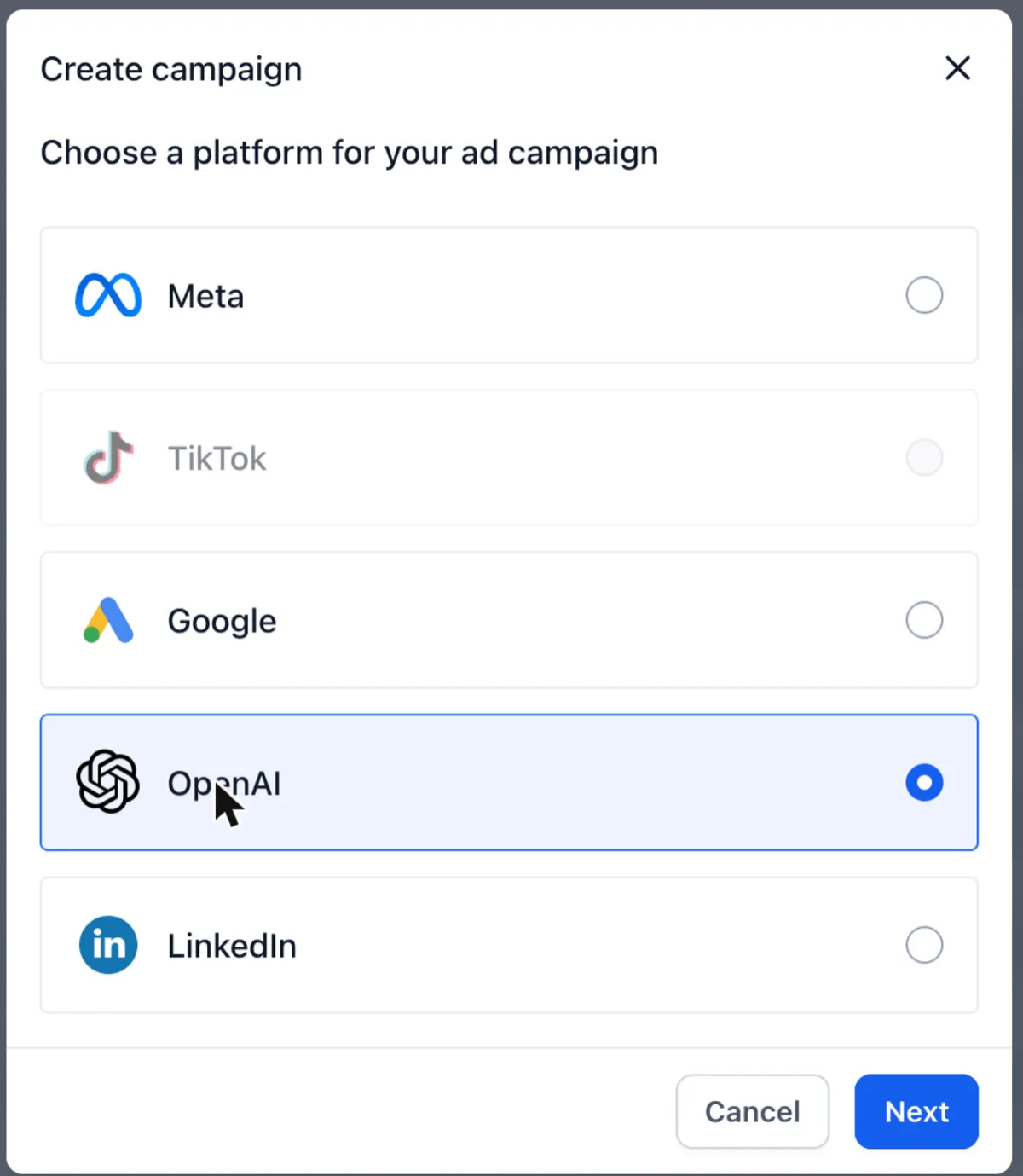
OpenAI is now a platform in Ad Manager, alongside Meta, Google and LinkedIn, so you can build and publish ads that appear inside ChatGPT, in its mobile apps and on the web. ChatGPT ads are already running in Australia. Campaigns use the familiar campaign, ad group and ad structure, with three objectives: reach, charged per 1,000 impressions, and clicks or conversions, both charged per click. Instead of keywords, you describe the situations where your ad belongs in your customers' words, with suggested hints you can add in one click. Each ad has a 50-character title, a 100-character description, a landing page and one square image, with a live ChatGPT preview as you type. You can target audiences built from a customer list or a smart list, matched on hashed emails and phone numbers, but an audience needs at least 25,000 matched users. Results sit in Statistics next to your other channels. You need your own OpenAI Ads account, and billing and ad review stay with OpenAI. For a property services business, it puts an ad in front of people asking ChatGPT how to fix a leak or which cleaner to book. More detail
Request Google Ads policy exemptions without leaving Ad Manager
When Google flags a policy violation as you publish a Google Ads campaign from Ad Manager, eligible violations now come with a Request Exemption option, where previously the campaign could not be published. It shows the violation details and asks you to confirm you have read Google's advertising policies, then Request and Publish submits the exemption and tries publishing again. The option appears only for violations Google marks as eligible, other publishing errors still need fixing, and the campaign still goes through Google's normal review. For a business whose campaign is held up by an eligible policy flag, getting it live no longer means leaving Ad Manager. More detail
Events, communities and the client portal
An attendee app for events, inside the client portal
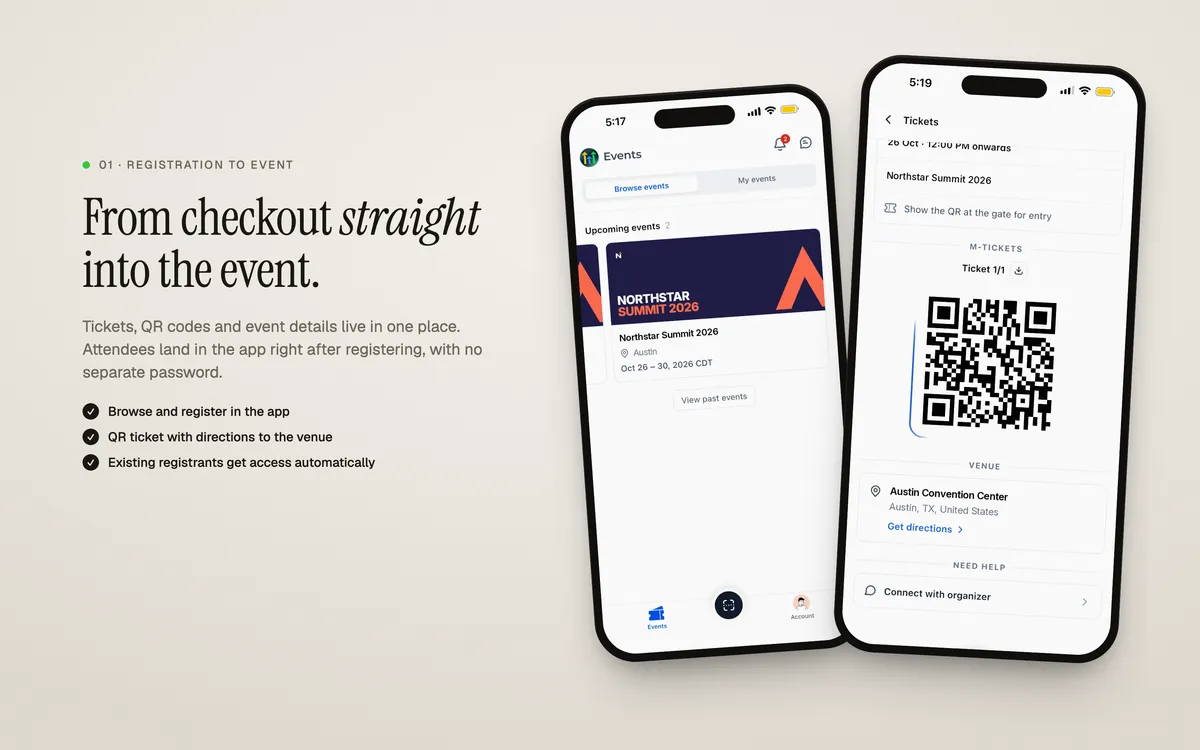
Events now have their own home in the client portal, on the web and in the mobile app. Members can browse live, upcoming and past events and buy tickets, with coupons, then go from checkout into the event with no separate password. Tickets carry a QR code and venue directions, and on iPhone they can be saved to Apple Wallet. Attendees can build a personal agenda, connect with other attendees and exhibitors by request or by scanning a badge, and chat with their email and phone number kept private. Exhibitors turn connections and badge scans into leads, sponsors can be shown in tiers or sold ad placements, and reminders and announcements go out by email, SMS, in-app message and push notification. Open the event's Attendee App tab and turn on attendee app access (you may be asked to upgrade the client portal first, which takes about a minute), then turn on Make this event discoverable to list it for all portal members. For a business running open days, trade nights or training sessions, the whole event sits in the portal clients already use. More detail
Custom levels and points for communities
Community admins can now set up to nine levels, each with its own name and points threshold, and decide how members earn points. Points can be given for posts (with different values for text, media and audio), comments and successful referral invites, taken away when an admin confirms spam, and optionally given for reactions received. Courses can carry their own completion points. Set any value to 0 to switch that action off. Go to Settings, then Gamification & Rewards. For a business running a client community, it rewards the behaviour you actually want, such as finishing an onboarding course. More detail
Rental bookings in the client portal
Clients can now browse and book rentals from the client portal, with their details filled in automatically, and cancel eligible bookings there, based on your booking settings. Meetings, service bookings and rentals all appear together under Appointments, split into upcoming and past. Switch it on under Calendars, Rentals, Global Settings, by turning on Allow booking from client portal, and make sure Appointments is enabled in the client portal's app permissions. It needs rentals switched on and the new client portal. For a business hiring out equipment such as scaffolding, trailers or carpet cleaners, regular customers can book from the portal they already log in to. More detail
A workflow trigger for client portal sign-ups
A new User Signup (Client Portal / Memberships) workflow trigger starts a workflow whenever someone successfully signs up through the client portal. Use it to send a welcome email and onboarding steps straight away, assign a follow-up task to a team member, or begin a longer onboarding sequence. Add the trigger to any workflow and publish. Until now there was no dedicated trigger for this, so new sign-ups had to be spotted and followed up by hand. For a business giving clients portal access to job updates, documents or courses, every new sign-up can now get the same welcome. More detail
Meeting Room
Sound alerts in Meeting Room
Meeting Room, the built-in video meeting tool, now plays sound alerts when someone joins or leaves, when a guest is waiting, when a hand is raised and when recording starts or stops. Each person chooses which sounds they hear under More, Settings, Alerts in a meeting, and the choice carries over to every meeting. Waiting room and raised hand alerts go to hosts and co-hosts only, and the recording alert cannot be switched off, so even late joiners hear it once. Returning guests also find their name already filled in. For a business running client consultations by video, a client waiting in the lobby is no longer left unnoticed. More detail
Share Meeting Room recordings with a link
Meeting Room recordings can now be shared with a link from the Recordings list or a recording's own page, with no exporting or attachments. Choose who can watch: only the people you add, anyone signed in to your account, or anyone with the link, optionally protected by a six-digit passcode. Links can expire after 7, 30 or 90 days or on a date you pick, and you decide whether viewers can download the recording or see its transcript and chat. Viewers watch in their browser, can search the transcript and jump to any moment, and see the meeting summary and next steps when included. For a property services business recording a site walkthrough or client briefing, anyone who missed it can catch up without a file being emailed around. More detail
Affiliate Manager
Affiliate terms, tax forms and payout details in one place
Affiliate Manager now has a single setup flow where affiliates accept your commission terms, submit any tax form you require and add a payout method before they are paid. Upload your terms as a PDF of up to 5 MB, and a new Compliance column in the Affiliates and Payouts lists shows who still has something outstanding, with the detail on each affiliate's profile. The tax form option asks for the United States W-9 or W-8 forms, so most Australian businesses will use only the terms and payout settings. Payouts are not blocked automatically, so check the Compliance column before approving one. Set it up under Marketing, Affiliate Manager, Settings, Affiliate Portal Settings. It is available in the new client portal interface only. For a business paying referral partners, such as agents or builders who send work its way, it gets their agreement to your terms on record first. More detail
One-time products in external website affiliate campaigns
Affiliate campaigns that track Stripe sales on your own website now include one-time products as well as subscriptions, so affiliates can earn on setup packages, courses and other one-off offers. Each one-time product can have its own commission rate, where previously it always followed the campaign default, and commission is calculated on one-time Stripe payments even when no invoice or subscription is created. Open a campaign with External Website as its source, add products in the products step, then set rates under Advanced Commission Settings. Products must be in your connected Stripe account, and earlier one-time sales are not backfilled. For a business selling a fixed-price service package on its own site, referral partners can now be paid on it. More detail
Managed Agents
Managed Agents are AI agents you set up in Agent Studio, under AI Agents, to carry out tasks in a chat, on a schedule or when triggered. Each run is charged by usage.
Managed Agents can make short branded films
Managed Agents can now create short films of up to 60 seconds, made of two to eight shots of 4, 6 or 8 seconds each, in landscape or vertical format at 720p. Characters, outfits and settings stay consistent across shots, and with a brand board connected the agent adds your colours, fonts and logo, title cards, captions and an end screen with a call to action. Films can be made in a chat or as part of a scheduled or triggered run, and each one is checked automatically for problems such as black frames or silent shots. Turn on Video Generation in the agent's settings and pick a brand board. Video is charged per second of each shot generated. For a property services business, a short clip promoting a seasonal offer can be produced from a description instead of a film shoot. More detail
Managed Agents can watch and analyse videos
Managed Agents can now watch videos from YouTube or your media library, taking in both the pictures and the sound, and produce summaries, transcripts and timestamped highlights, or answer questions about what was shown or said. Files of up to 2 GB in common formats such as MP4 and MOV are supported, along with public YouTube links, and in testing a 24-minute video was summarised in under a minute. It is available in every Managed Agent with no setup, charged by usage with no separate fee per video. Paste a link or attach a video in a chat with the agent and ask your question. For a business with recorded training sessions or webinars, a summary or a set of social posts can come straight from the recording. More detail
Sharper images from Managed Agents
Image generation in Managed Agents now uses GPT Image 2.6 for medium and high quality, giving sharper detail and cleaner text in images, while low quality stays on GPT Image 2.5 for fast, cheaper drafts. A new Compare costs option shows the relative cost of each setting: low at about a tenth of medium, and high at about four times medium. Agent logs now show the model, quality and size used for each image. Existing agents are upgraded automatically and keep their quality setting. For a business making social graphics or ad images with an agent, text in the image is less likely to need fixing by hand. More detail
Build and publish Managed Agents through the API
A new Managed Agents API lets developers create, update, publish and unpublish Managed Agents from code. An agent can be created from a plain-language description, with the builder asking for any missing details, and checked to confirm it is ready to publish. Access is through a private integration with its own permission. Building and publishing agents is free, while running them follows normal usage charges. This one is mainly for developers connecting the platform to other software, so talk to the Clientflow team if you have a project that needs it. More detail
A rich text editor for Managed Agent instructions
The Instructions field for Managed Agents now has a rich text editor. You can add headings, lists, quotes, links, tables and code blocks without writing Markdown, paste formatted text without losing its structure, and type / to insert formatting or a reference to a tool, app, skill or subagent. Variables stay as live values even when copied and pasted. Only the editing changes, and agents behave exactly as before. For anyone maintaining long agent instructions, such as a detailed quoting process, they are clearer to read and quicker to update. More detail
Routines put Managed Agents on a schedule
Managed Agents can now run routines, recurring tasks you set up by asking in plain language, such as "every weekday at 8 AM, summarise my new leads and inactive deals". Results arrive in the same conversation, where you can keep chatting about them, and a Routines tab lists every routine so you can pause or resume it. Routines can also use the agent's computer to browse websites, with an approval on the first run and a pause for any new sensitive action. Payments always need approval. Each person can have up to 10 active routines per agent, running no more often than once an hour, and routines need a published agent. For a business owner, a morning briefing on new enquiries and stalled quotes can arrive without asking for it each day. More detail
AI Studio
AI Studio builds websites and web apps from a description. If it is not yet switched on for your team, ask your usual contact on the Clientflow team.
Build and publish an AI Studio site from Ask AI
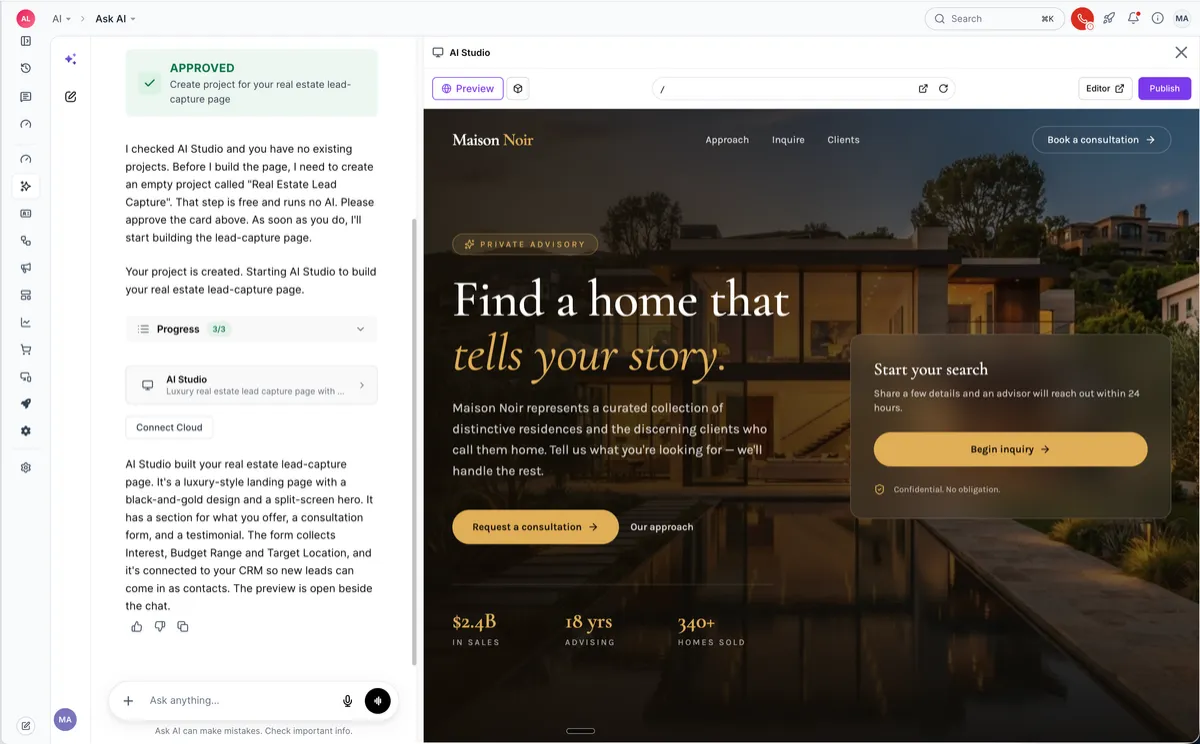
You can now build a website or app by describing it in an Ask AI chat. Ask AI hands the request to the AI Studio agent, which asks any questions it needs, such as colour palette, fonts or which calendar to use, as clickable options in the chat, and shows a checklist of its progress. You can attach a brief as a PDF, or images such as your logo. The project previews beside the chat, changes are made by asking, and it can be published from the chat to the default domain. A custom domain still needs connecting in the AI Studio editor. Builds use your account's AI usage, and the agent may fill gaps with sample text, reviews or contact details, which it flags, so replace those before going live. For a property services business that wants a landing page for a new service, the first version can be built from a conversation. More detail
Connect a custom domain before you publish
AI Studio projects no longer need publishing before you add a custom domain. Click + Add domain in the Publish panel, or go to Settings, Domains, follow the DNS steps, and the latest ready version publishes to your domain automatically once DNS is verified. The custom domain becomes the main web address, and the preview address stays available. If the first publish fails, the domain stays connected and you can try again from the Publish panel. Projects that are already live keep their current version when a new domain is connected. For a business launching a new site, it can go live on its own domain from the very first publish. More detail
Point AI Studio at a file, or start an integration, from the chat
The AI Studio chat box now accepts two shortcuts. In Code view, type @ to pick a project file, down to a line or range if you like, so the AI knows exactly which file you mean. In Builder, type / to choose a built-in skill for database optimisation, form tracking, a calendar, payments or a chat widget, one skill per message. Replies also stream in more smoothly, and the pickers work with keyboards and screen readers. Typing / or @ as ordinary text still works. For a business editing its AI Studio site, adding a booking calendar or a payment form starts with one command. More detail
That is the fortnight. Missed the last one? Catch up on the 26 October to 8 November updates.
Already a Clientflow client? If you want to know more about any of these features, or would like them deployed in your account, get in touch with your usual contact on the Clientflow team.
Not yet a client? Book a call with the team, or see the full feature set on the platform capabilities page.
Clientflow is built on the HighLevel platform, delivered with Australian onboarding, support and expert implementation. Read how that works on our GoHighLevel Australia page.


