
Clientflow Platform Updates: 6-19 July 2026
Sixteen features across the middle of July, and the most useful ones solve the same problem from three directions. A workflow can now tell when a person on your team has replied, which means a nurture sequence can stop the moment someone picks up the conversation, and a response-time commitment can escalate itself when nobody does. Elsewhere, service bookings can finally be edited after payment, and buffer time shows on the calendar instead of silently blocking slots. Here is everything from 6 to 19 July 2026.
Automation
Workflows Now Know When Your Team Has Replied
Three related additions landed together, all keyed on a team member replying rather than a customer.

A User Replied trigger fires when a staff member replies to a contact conversation. It works across channels and takes filters. The point is automating the internal steps that should follow a reply: updating an opportunity stage once a rep responds, applying a tag, changing an assignment, or creating a follow-up task. CRM records stay accurate without anyone remembering to update them. More detail
The Goal action now accepts User Replied as a goal event, so a contact jumps straight to that step the moment someone on your team engages, skipping whatever automated messages were still queued. That is the fix for the familiar embarrassment of a nurture email landing an hour after a real conversation has already started. More detail
The Wait action now accepts User Replied as a wait condition, with an optional timeout. The workflow pauses until a team member responds or the timeout expires, whichever comes first, and where a timeout is set the contact can be routed on to escalation steps. That is how you make a response-time commitment enforceable: alert a supervisor after 30 minutes with no reply, or create an urgent task after 15. More detail
Four New Communities Triggers
Community activity can now start a workflow. The four triggers are Group Joining Request Rejected, Group Post Created, Group Comment Created and Member Registered for Group Event. Each takes filters, with group selection mandatory and optional filters on channel, post title, post content, comment content and event title, so an automation can be scoped to a particular group or subject rather than firing on everything. Found under Automation, Workflows, then Add New Trigger and search for Community. More detail
Jira: Triggers and Actions
Jira connects natively to workflows in both directions. Two triggers, New issue and Updated issue, start a workflow when an issue is created or changed. Eleven actions split between discovery (find users, find projects, find issues) and issue lifecycle (create issue, update issue, add comment, add watcher, add attachment, add work log, link issue, move issue to sprint). Connection is through OAuth with a friendly account name and email, authorised on Atlassian’s screen, and connecting once enables the triggers and actions across every workflow. Where you run several Jira instances, the target site is selected per step. The obvious use is notifying a customer automatically when their issue moves to Done. More detail

Todoist: Triggers and Actions
Todoist is now native too. Three polling triggers, new incomplete task, new completed task and new project, each polling every five minutes. Twelve actions cover task lifecycle including create, update and complete, plus commenting, project operations, task and project discovery, and collaborator management. Connect through OAuth from the Apps tab in the workflow builder or Settings then Integrations. All components are premium and billed per execution, with Todoist billing its own plan usage separately. If your team already runs its task list in Todoist, work created by a lead or a booking can land there rather than being typed in twice. More detail
AI
AI Builder: Targeted Edits
The workflow AI builder can now make scoped changes instead of reworking a whole workflow. Name the specific actions or triggers to change and it updates exactly those, leaving the rest alone. It handles bulk copy edits across multiple email, SMS or other channel actions, bulk pipeline stage swaps across both actions and triggers, and bulk sender identity configuration covering From Name and From Email. Targeting is precise enough to update a subset, such as 20 emails out of 50.

Open the AI assistant in the sidebar, describe the change and its scope, review the preview, then save. The value is that editing effort stops scaling with workflow size: a rebrand across a fifty-step workflow becomes one instruction rather than fifty. More detail
Communication
Conversation AI: Bots Assigned per Channel
The requirement for a primary bot is gone. Any bot can now be assigned directly to specific channels, covering SMS, email, Facebook, Instagram, WhatsApp, live chat and web chat, and respond independently on each. Routing is more granular, supporting assignment by channel, by account or number, and by contact tags, with more specific assignments taking priority over broader ones. Duplicate assignments to identical channel configurations are prevented.
A Labs feature, enabled by toggling Conversations AI Channel Management, with about five minutes for migration. Existing primary bots are assigned automatically to the channels they already support; other bots keep their settings but need channels assigned by hand. Public API support for managing channel assignments is not available yet. This means the bot answering website chat can behave differently from the one answering WhatsApp, rather than one bot covering everything. More detail
RCS Messaging in Workflows
RCS messaging is available in workflows, in private beta. Two actions: Send RCS for standard messages, and RCS Interactive Message for richer experiences using cards and buttons, with contacts routed down different paths based on how they interact. The private beta also covers one-to-one RCS from Conversations and bulk RCS for outreach. Access is gated, so you need to be enabled for it rather than switching it on yourself. Onboarding flows are listed as coming, with general availability targeted for the end of the third quarter. Worth knowing about now if you send a lot of SMS and want a richer format when it lands. More detail
Booking and services
Edit a Service Booking After It Has Been Paid
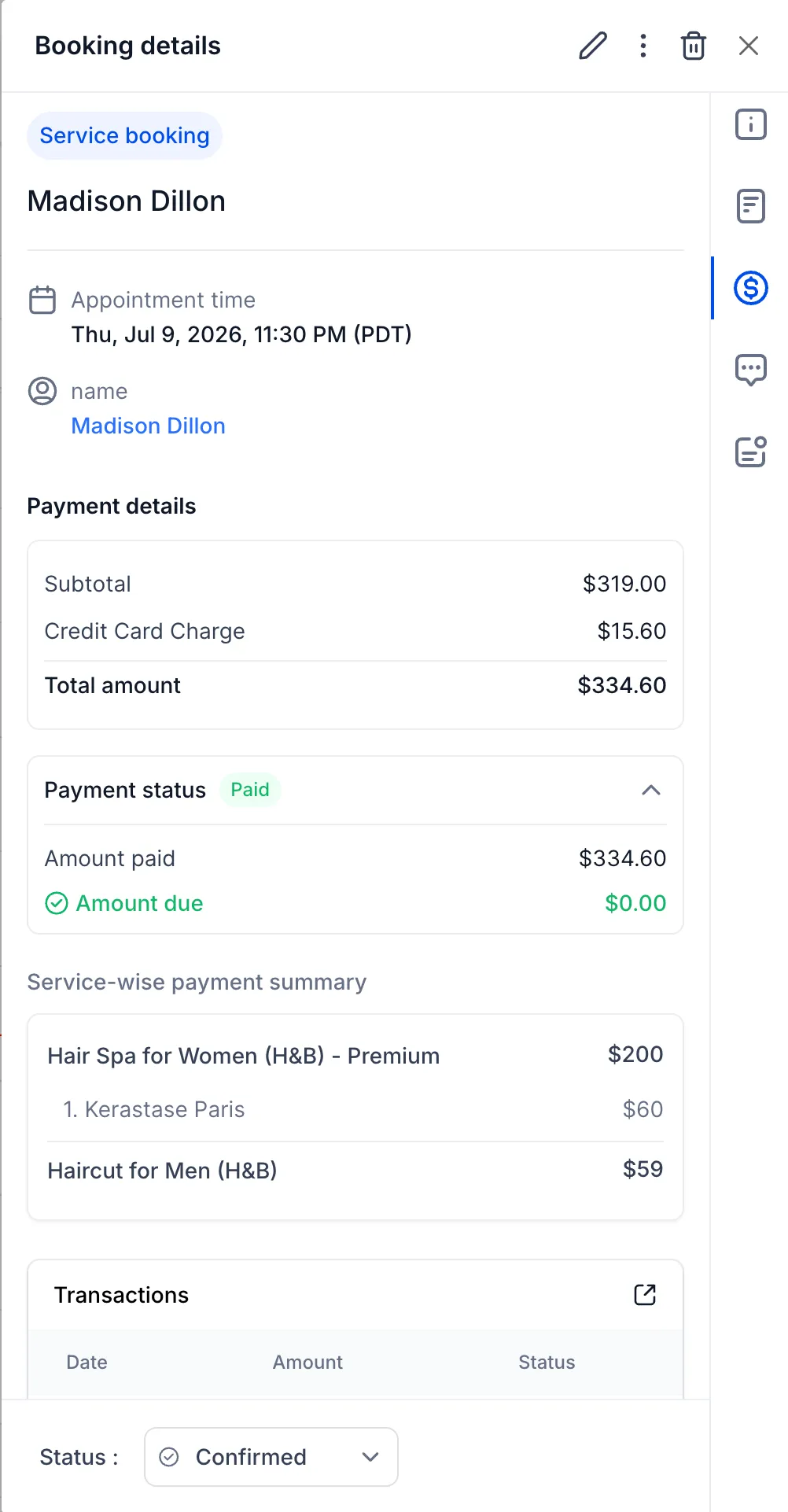
Changing a paid service booking used to mean cancelling and recreating it. Both paid and unpaid service appointments can now be edited in place: add or remove services, change add-ons, reassign staff, apply coupons. Totals recalculate automatically and payment reconciles, showing whether more is owed, whether the booking is fully paid, or whether a refund is due. Refunds can be processed straight from the appointment modal, and the existing order is updated rather than a new one created, so payment records stay attached to the original booking.

Open the booking, click Edit, change it, save. Editing is temporarily disabled while a refund processes, though rescheduling still works in that state. Mobile support was rolling out from the week of 20 July. For any business where customers add or drop items after booking, this removes the refund-and-rebook workaround entirely. More detail
Services v2: Deposit or Full Payment, Customer’s Choice
Three payment changes to Services v2. Where a deposit is configured, you can now let the customer choose between paying the deposit or the full amount at checkout rather than forcing one path. Because the full amount is now selectable, buy now pay later providers can finance the whole booking rather than just the deposit. And percentage-based deposits now calculate on the final payable amount after discounts, recalculating when coupons change, with add-ons and taxes included.
Found under Services, Global Settings, Payment Settings, with the payment mode set to Online Payment, then enable the deposit or full payment choice. Requires online payments enabled and a deposit configured. The deposit calculation fix alone is worth having if you run promotions on deposit-taking services. More detail
Buffer Time Shows on the Calendar
Pre-buffer and post-buffer time used to block availability invisibly, which made it look like the calendar was wrong. Buffers now appear as highlighted informational blocks around appointments in day and week views. Switch on Show buffer time in Calendars after selecting day or week view. It works across the staff, service and category filters, so buffers stay visible when the calendar is filtered down.

For anyone scheduling back-to-back jobs with travel or setup between them, this makes it obvious why a slot is unavailable rather than leaving someone to override a block they did not know was there. More detail
Permissions Standardised Across Meetings, Services and Rentals
The permission model that existed for Meetings now covers Services and Rentals as well, with two new permissions added: Manage associated resources, covering locations, staff, resources and add-ons, and Manage preferences and global settings, covering module-level configuration. That gives six standardised permission types across all three scheduling modules: view access, manage setup, manage appointments, manage groups or categories, manage associated resources, and manage preferences and global settings.
Found under Settings, My Staff, then the team member’s Roles and Permissions, in the Calendars section. The practical effect is that front-line staff can manage bookings without also being able to change pricing structures or global settings. More detail
Client portal and courses
Clients Get Notified When You Share a File
A file shared with a contact through the Client Portal used to sit there until they happened to look. The contact now receives a notification in real time, both in the portal on web and in the mobile app, with in-app and push notifications supported. Contacts control it themselves under Settings, Notification Preferences in the portal. On your side, open the contact’s Files section in the right-hand panel, upload or select the file, enable Upload to Client Portal and save. That removes the follow-up email telling someone a document is waiting. More detail
Turn Google Sign-In On or Off for the Client Portal
The Sign in with Google button on the Client Portal sign-up and login pages can now be hidden. With it off, clients authenticate by email and password or by a secure login code, so access still works without Google. Found under Settings, Sites, Client Portal, App Permissions, in the sign-up and sign-in methods section. Configured per account and applies to the web portal only. Useful where your clients are unlikely to have or want to use a Google account for this. More detail
Tags for Courses
Courses can now carry Language, Difficulty and Topic tags, which show on course cards and drive filtering across both the All Courses and My Courses library views. The tags are predefined rather than free text, which keeps categorisation consistent across a catalogue. Set them under Memberships, Courses, Settings, in the Course Tags section. Custom tags are flagged as coming. This matters once a library grows past a handful of courses and scrolling becomes the barrier to people finding the right one. More detail
That is the fortnight. Missed the last one? Catch up on the 22 June - 5 July updates.
Already a Clientflow client? If you want to know more about any of these features, or would like them deployed in your account, get in touch with your usual contact on the Clientflow team.
Not yet a client? Book a call with the team, or see the full feature set on the platform capabilities page.
Clientflow is built on the HighLevel platform, delivered with Australian onboarding, support and expert implementation. Read how that works on our GoHighLevel Australia page.


