
Clientflow Platform Updates: 17-30 August 2026
Forty features landed across this fortnight, and the one to read first is the model picker in the AI Agent action: Claude and Gemini models now sit alongside the OpenAI options, with a reasoning effort control that lets you trade depth against cost on a per-action basis. Calendars picked up two changes worth acting on straight away, since a single calendar can now offer up to three meeting durations, and the date range setting can count working days instead of calendar days. Here is everything from 17 to 30 August.
AI across the platform
Claude and Gemini models in the AI Agent action
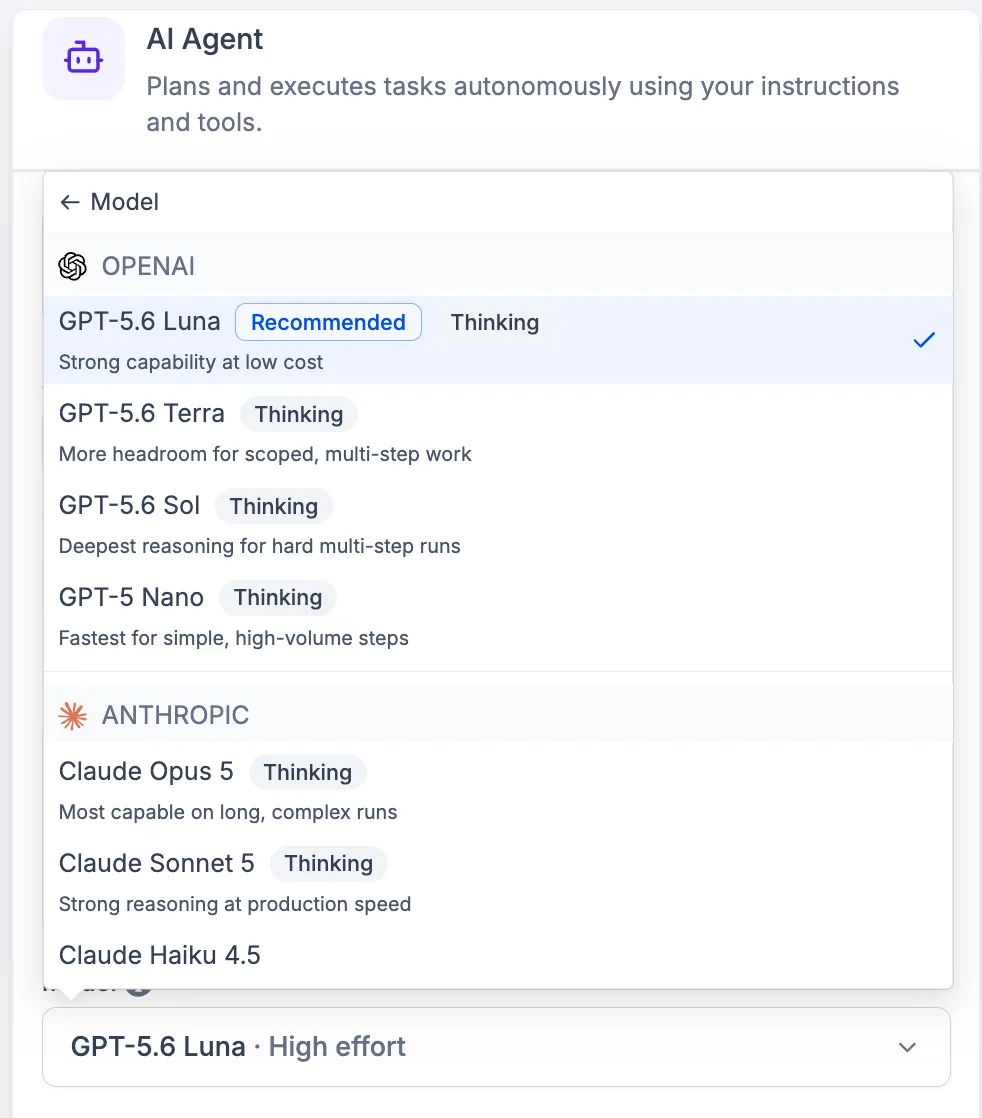
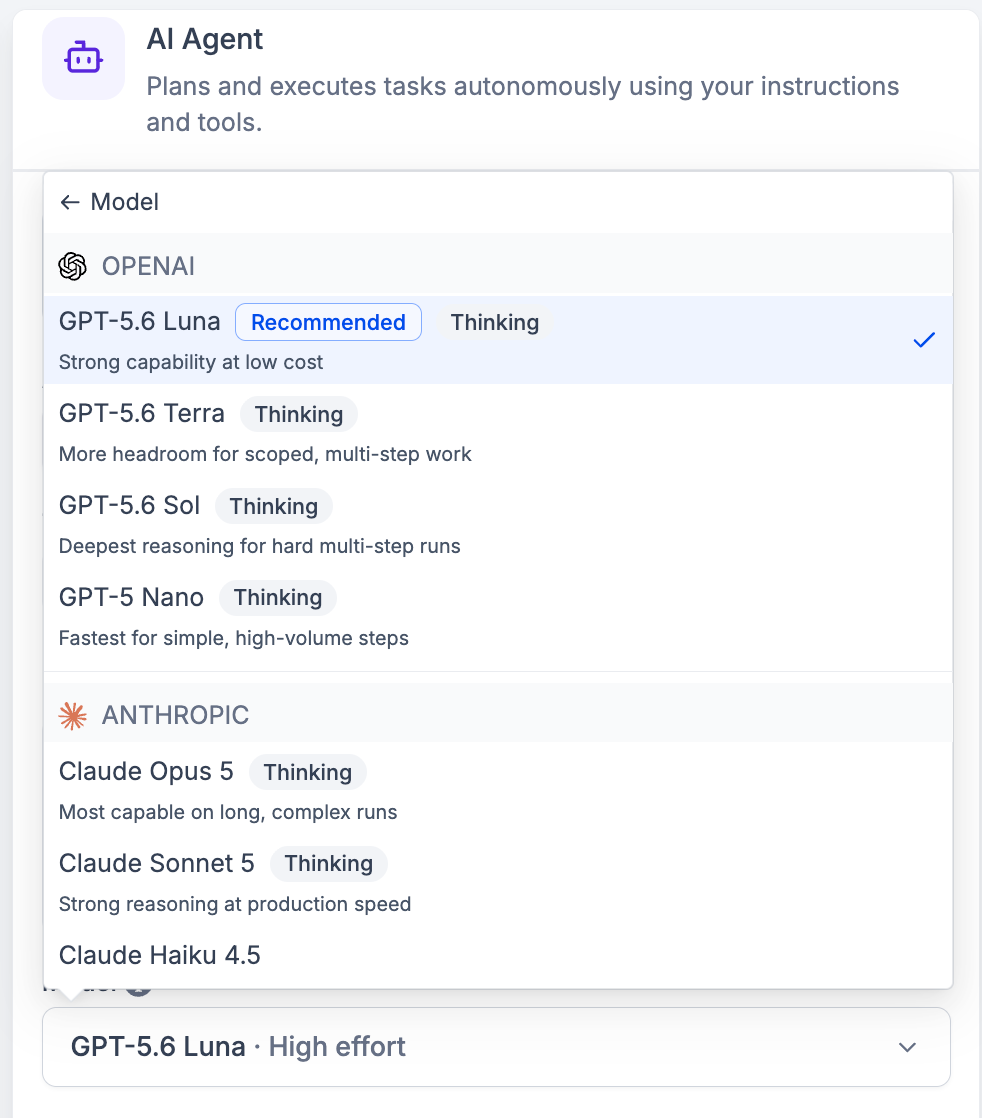
The AI Agent action inside workflows now offers three model providers rather than one. Anthropic’s Claude Opus 5, Sonnet 5 and Haiku 4.5 sit alongside Google’s Gemini 3.6 Flash and Gemini 3.1 Pro Preview, plus the OpenAI options already there. Models are grouped by provider with a short description of what each one suits, and those built for reasoning carry a thinking chip. A new effort control sets Low, Medium or High reasoning on supported models, trading depth against speed and cost for that action alone. You will find it in the model dropdown inside any AI Agent Action. For a property services business running lead qualification or booking workflows through AI, this means matching a faster, cheaper model to routine tasks and reserving a stronger one for anything that needs real judgement. More detail
Ask AI prompts can run on a schedule from the mobile app
Ask AI prompts in the mobile app can now be saved as scheduled tasks rather than typed out each time. A prompt can run manually, hourly, daily, on weekdays, or weekly at a chosen time, and tasks can be created, paused, resumed, edited or deleted from the phone, with a run-now option and a history showing whether each run completed, was skipped or failed. Tapping a finished run opens the full conversation, and scheduled runs sit in their own section of chat history, separate from regular chats. Tasks created on the desktop scheduler show up on mobile and the other way around. It needs app version 4.20.0 or higher. A prompt scheduled each morning to summarise yesterday’s new leads or list the day’s appointments means that information is waiting rather than being something someone has to remember to ask for. More detail
Certificate AI is now in beta
Certificates can now be generated from a written prompt rather than built from a blank canvas. The AI asks guided questions, such as certificate orientation, then produces a complete design using text, frames, signatures and QR codes drawn from the Certificate Builder’s own elements. The result stays fully editable afterwards. It sits under Memberships, then Credentials, and is currently in beta, so the experience may keep changing. A property services business running staff training, course completions or compliance certificates can get a usable first draft in minutes, then adjust the wording and branding to match. More detail
Workflows and automation
Dynamic values now appear as chips
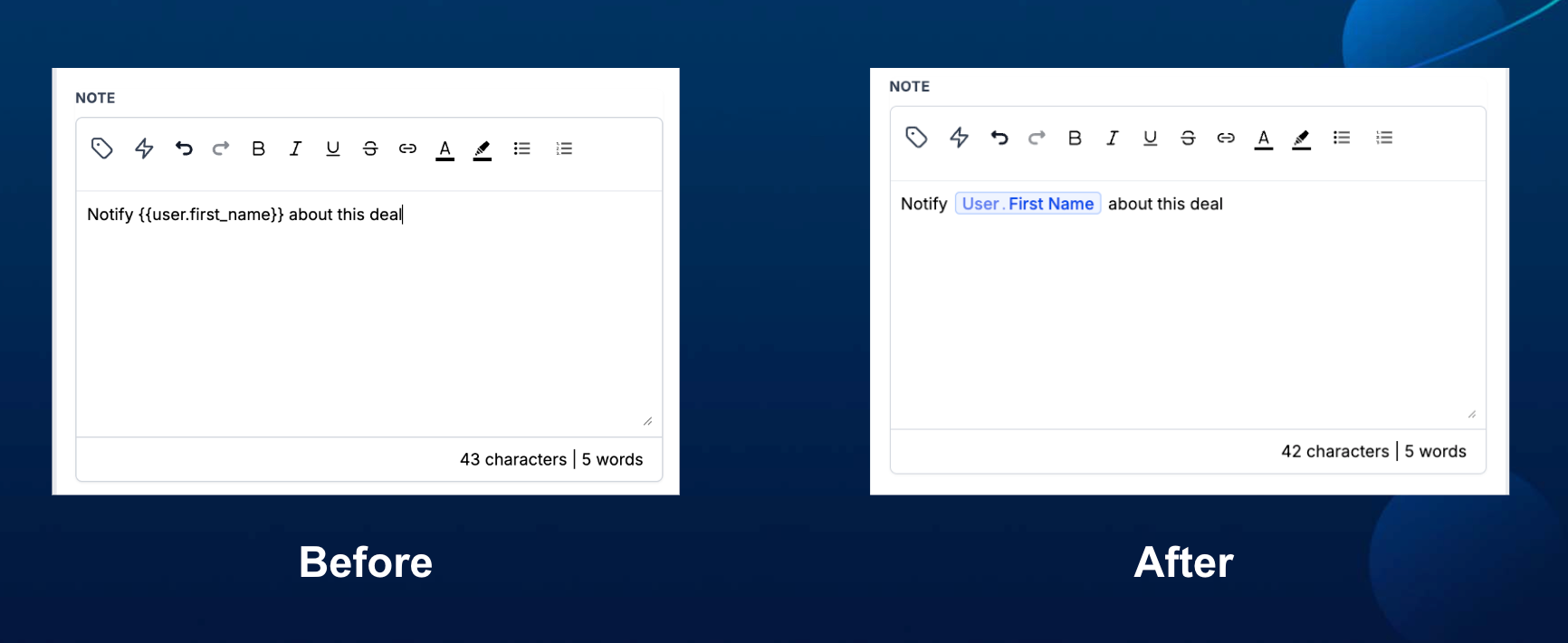
Custom values inside workflow text fields now show as coloured chips rather than plain text, so they stand out from the surrounding copy at a glance. Typing a forward slash inside any workflow text field opens a quick search to insert a custom value directly, and clicking an existing chip lets you swap it for another value in the same spot. Values that are stale or no longer recognised are highlighted in red, flagging them for a fix before the workflow runs. This is a visual change only, and workflow behaviour and how values resolve stay the same. It appears in the workflow builder wherever text fields accept custom values. For a business running detailed automations, spotting a broken merge field before a client email goes out saves an awkward follow-up call. More detail
Add a value to a multi-select field without clearing the rest
The Update Contact Field workflow action now includes an Add option for multi-dropdown and multiple-checkbox fields, letting a workflow add a value to a contact’s existing selections instead of replacing everything already stored there. Choosing Add narrows the field picker to multi-select fields only, and the new option sits alongside the existing Update and Clear operations. Until now, updating a multi-select field through a workflow wiped whatever was already selected. For a property services business tracking several service types against one contact, a workflow can add gutter cleaning to a contact who already has roof repairs saved, without losing the original selection. More detail
List values can be dropped straight into workflow text
The custom value picker inside workflow text fields now recognises list type values, such as order line items or array data from an inbound webhook, rather than refusing to render them. Selecting a list value opens an inline builder where you choose which field to extract and how the list should display: comma separated, bulleted, numbered, or joined with a custom separator. That formatting is saved and reapplied each time the workflow runs. It lives in the same custom value picker used throughout the workflow builder, in emails, notes and other text content. For a business whose webhooks or forms return several line items per booking or job, a numbered list of products or services can now go straight into a confirmation email instead of needing a workaround. More detail
Pick an email sender domain for each workflow
Workflow Settings now has a Sender details dropdown listing every verified dedicated domain on the account, so each workflow can send from a specific domain rather than all of them sharing one. Choose All domains for weighted distribution across everything configured, or pick a single domain and enter an email prefix. Only domains verified under Email Services appear in the list, settings on an individual email action still override the workflow-level choice, and a warning appears if the sender address does not match the selected domain, since a mismatch can affect deliverability. The point is separation: promotional or cold outreach can run on one domain while booking confirmations, reminders and receipts run on another, so a poorly received campaign does not drag transactional mail into the spam folder with it. More detail
Email opens and clicks now carry a Message ID
When a workflow triggers off Email Events, opens and clicks now carry a unique Message ID that can be picked from the custom value picker when building a Send Webhook payload. Every open or click on the same email returns the same ID, so a business pushing engagement data into an external system can match each event back to the exact email that produced it, even when a contact opens something older days later. It sits inside the Send Webhook action in any workflow that starts with an Email Events trigger, covering both Email Opened and Email Clicked. For a business running email campaigns and reporting engagement into its own dashboard, repeat opens of the same message can finally be collapsed into one record instead of counted several times over. More detail
Create and Update Record picklists accept merge tags again
Single-select dropdown fields inside the Create Record and Update Record workflow actions, including their associated record versions, had stopped accepting merge tags. A saved value such as a contact’s custom field would open the dropdown empty with nothing selected, and there was no way to type in a new dynamic value. These fields now carry the same Standard and Dynamic toggle already used in Update Contact Field. Standard gives the searchable picklist as before, and Dynamic gives a text input with the custom value picker, so a merge tag from a trigger, formatter or webhook can be dropped straight in. Existing saved values that do not match a picklist option now open correctly in Dynamic mode. Switching between modes clears the current value, so it needs re-entering after a toggle. Multi-select fields were not affected. More detail
Badges can now trigger and be triggered by workflows
Two new building blocks have arrived for badges: an Issue Badge action that awards a badge once workflow conditions are met, and a Badge Issued trigger that starts a workflow the moment a badge goes out. Together they let badge recognition chain straight into automation, for instance sending a follow-up message, updating a contact record, or starting another workflow after someone earns a badge. Both sit inside the workflow builder alongside existing actions and triggers, with no separate setup. For a business running loyalty or referral badges through courses or community features, recognition can now trigger a real next step, such as a thank you message or a review request, rather than sitting as a static achievement with nothing following it. More detail
Run a workflow across a batch of company or custom object records
You can now select multiple Company or Custom Object records from a list view and fire a workflow across all of them at once, rather than triggering automations one record at a time. Choose the workflow to run, confirm the action, then track progress and record-level results through Bulk Actions. It suits onboarding or follow-up sequences across a batch of companies, renewal automations for policies or subscriptions, a freshly imported set of custom object records, or a one-off operational workflow on records that already exist without waiting for a new trigger event. For a business managing trade partners or recurring service contracts as custom objects, it removes a lot of repetitive manual triggering when a batch needs the same automation applied. More detail Setup guide
Test SMS numbers get a country picker
The test phone number field in the Send SMS workflow action now uses the standard phone input with a country flag picker, matching the rest of the platform. You type the number the way you would dial it locally, and it is saved in full international format before the test sends. Clicking the flag lets you search by country name or dialling code and switch it. It is under the Send SMS action, in the Test Phone Number field. Staff testing reminder or follow-up SMS steps against interstate or overseas numbers can dial locally without guessing at country codes, and will stop hitting the old invalid number error on a number that was formatted correctly all along. More detail
Screen community join requests with a workflow
A new Requested to Join Group workflow trigger fires whenever someone submits a request to join a community group, and it can be filtered by group and by the actual answers given to that group’s membership questions. Those answers can be passed into a GPT action inside the workflow, for example to flag spam or low-quality responses, with an If/Else step then approving access automatically or routing the request for manual review. It only fires on request-based groups, and GPT actions carry an additional cost per run. For a business screening community join requests, this cuts down on reading every application by hand while keeping a human check available for anything the automation flags. More detail
Bookings, calendars and rentals
One calendar can offer up to three meeting durations
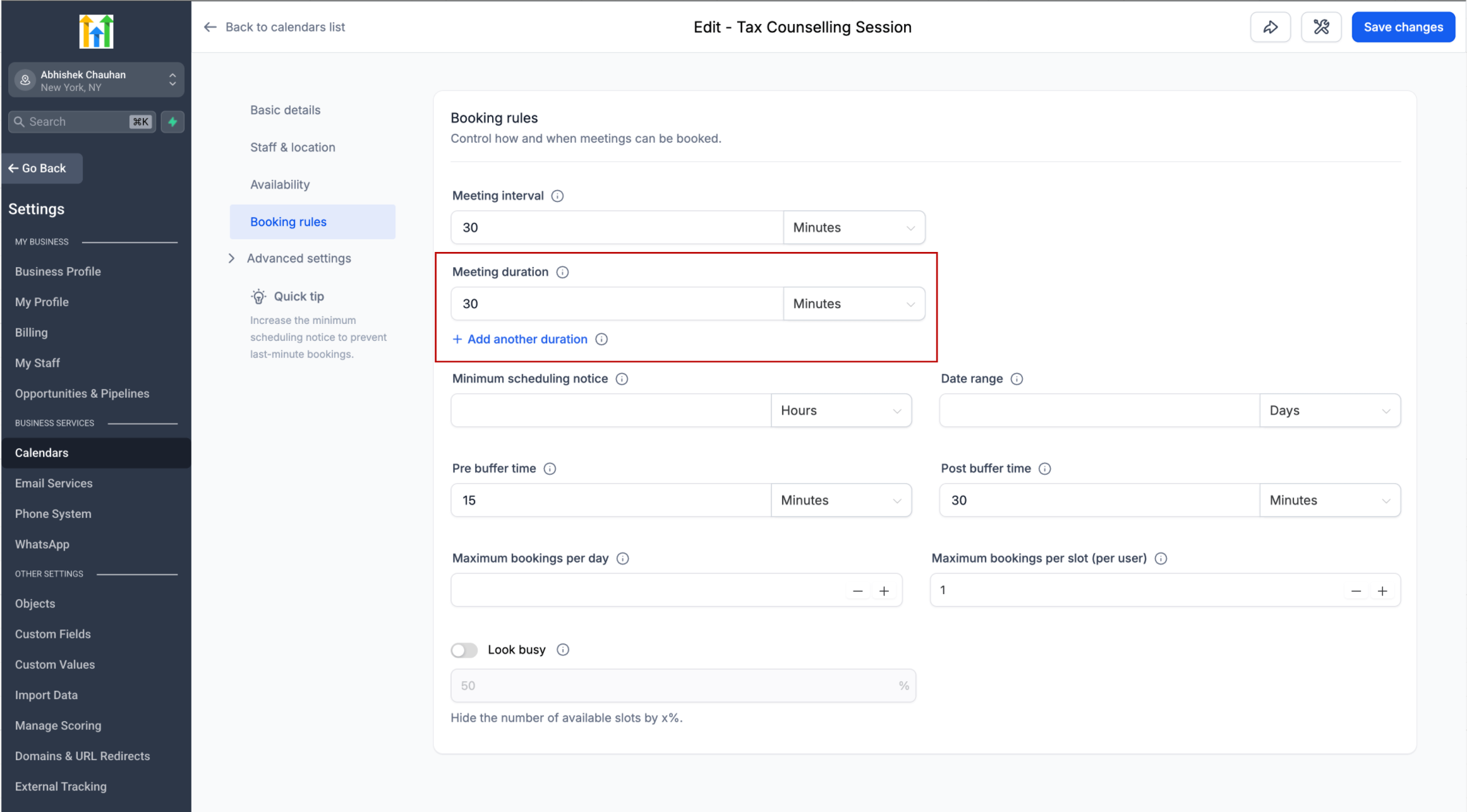
A single calendar can now offer up to three different meeting durations instead of needing a separate calendar for each length. You choose which duration is selected by default, and bookers see the options on the booking page, with availability refreshing automatically when they pick a different length. It works across web and mobile booking pages, both booking widget versions, and in-app booking, and the chosen duration carries through if an appointment is rescheduled. Changing the duration options on a calendar never alters appointments already booked. It is available on personal, round robin, collective and event calendars, with no setup beyond adding the extra durations in calendar settings. For a trades or property services business offering a quick quote alongside a full on-site assessment, one calendar now handles both. More detail
The date range setting can count working days only
A new Count available days only toggle on Calendars, Services and Rentals changes how the Date Range setting counts days, skipping weekends or days marked closed rather than counting every calendar day. It also behaves correctly alongside minimum scheduling notice, and covers round robin and collective calendars where at least one team member is available. It is under Date Range in Calendar Settings, Service Global Settings, or a Rental’s Booking Settings. An inspection or maintenance business closed on weekends no longer shows a blank booking calendar to a client browsing on a Friday, because the window now extends properly into the following working days. More detail
Calendar AI builds a bookable calendar from a description
Calendar AI is a new guided setup flow that takes a user from describing what they need to a working, bookable calendar. Rather than working out which calendar type applies, users describe the use case in plain language and the tool recommends and builds the calendar, then walks through adding team members, setting availability, choosing a meeting location and previewing the booking widget, before a test appointment confirms it works. Users can ask questions along the way or pick from preset prompts to learn what calendars can do. A troubleshooting mode is planned next, aimed at explaining why a particular slot is not showing on a booking widget. For a business new to the platform, this shortens the gap between signing up and taking a first real booking. More detail
Choose what details are collected from meeting guests
Calendars now let you choose what information is collected from meeting guests, rather than being locked to name and email. The options are name and email, name and phone, all three, or guest count only, which records numbers attending without creating a guest contact at all. Where guest details are collected, a contact is automatically created or matched against an existing one using their email or phone number. Existing calendars keep collecting name and email by default, while new calendars default to capturing all three. Guest contacts created during a booking now also inherit the primary contact’s timezone rather than defaulting to the business timezone, so reminders and event times line up correctly. For a business booking several attendees onto a site visit or inspection, this means richer, more contactable guest records without extra manual data entry. More detail
Rental booking pages get clearer checkout and a persistent cart
A set of updates has landed across the rental booking page, listing detail page and checkout flow. Businesses using the multi-item cart can now set a custom label for the add to cart button from booking page settings. Rental dates now appear in the checkout order summary so customers can confirm they are booking the right date and time. Listing descriptions on rental detail pages show inline and expanded by default rather than behind a read more link, and the cart now stays intact if a customer clicks the logo to return to the home page. Several minor interface fixes round out the release, including better text wrapping on home page cards. For a business renting out equipment or spaces, clearer checkout dates and a cart that survives a stray click should mean fewer abandoned bookings. More detail
Messaging, chat and phone
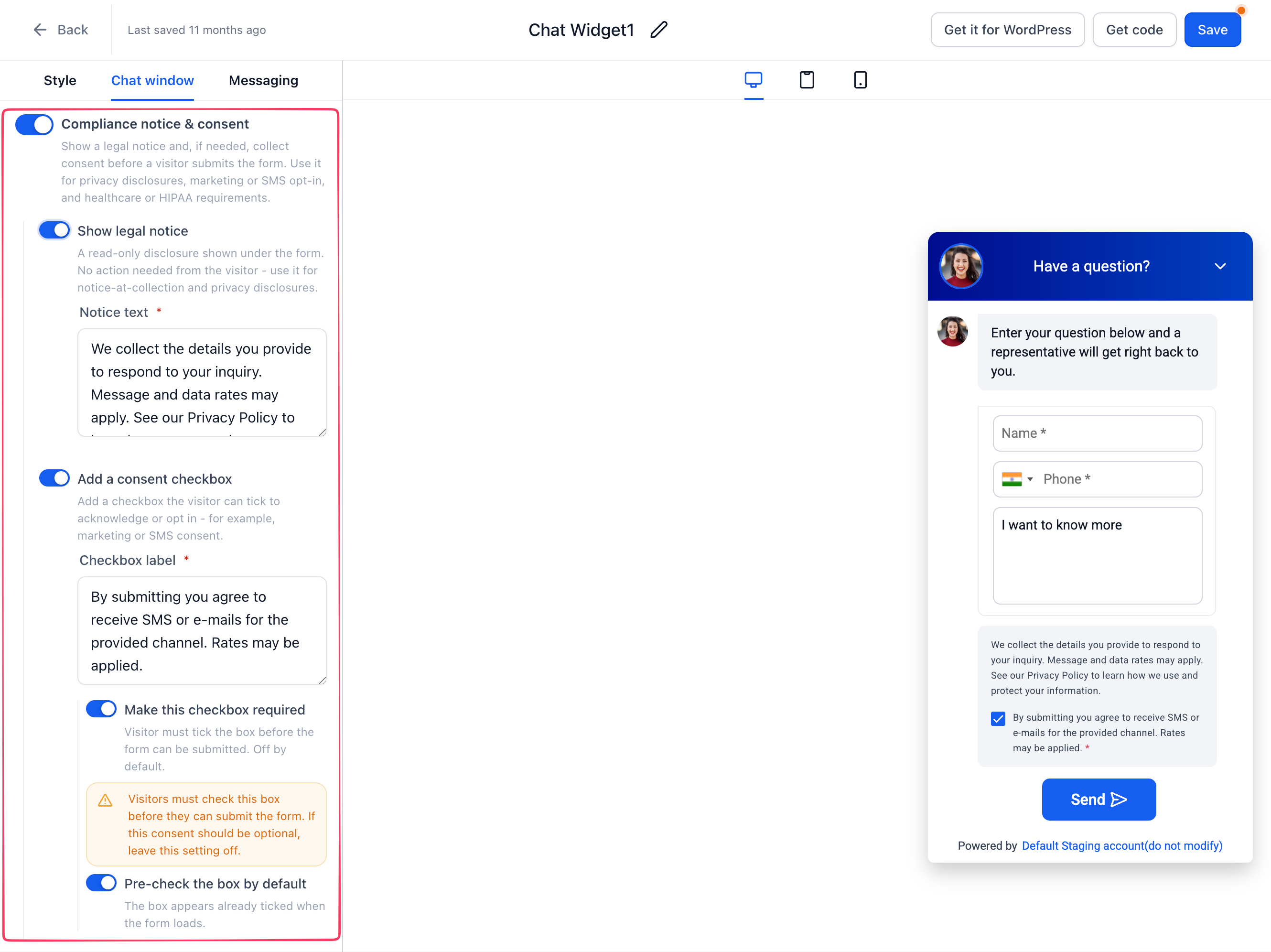
Chat widget compliance and consent are now two separate settings
The chat widget’s compliance settings have been split into two controls instead of one combined HIPAA toggle. You can show a legal notice below the contact form without requiring any action, and separately add a consent checkbox with your own wording for things such as SMS or email marketing opt-in. Consent can be set to required or optional, pre-checked or not, and a validation message appears if a required box is left blank. Each visitor’s consent choice, whether it was required, and the exact wording shown are all recorded in Activity details. Existing widgets keep working as they are until reopened and saved, and existing legal text carries over automatically. The settings are under Chat Widget, then Chat window, then Additional options. For a business collecting SMS opt-ins through chat, this gives a far clearer record of what each lead actually agreed to. More detail
WhatsApp messaging limits are now set across the whole portfolio
Meta now sets WhatsApp messaging limits at the business portfolio level instead of per phone number, so every number sharing a portfolio draws from one daily sending cap. WhatsApp Settings now shows this single shared limit under Messaging Limits, and the old per-number limit column, which implied separate quotas, has been removed. A business sending WhatsApp updates from more than one number should watch that shared limit closely, because one high-volume number can now consume the whole portfolio’s daily capacity and stop the others from sending. More detail Setup guide
The WhatsApp template builder catches invalid variables before you save
The WhatsApp template builder now checks variable placeholders as you type, rather than waiting for WhatsApp to reject the submission. It flags templates that start or end with a variable, catches broken tokens such as unbalanced braces, and only allows the numbered placeholder format WhatsApp accepts. The default reputation review-request template has also been tidied up so it passes validation without edits. Nothing needs turning on: open Settings, then WhatsApp, then Templates, and the checks run inline while you build. For a business sending review requests and job updates over WhatsApp, templates now tend to get approved on the first attempt rather than bouncing back with a vague rejection to decode and resubmit. More detail
Collect a phone number from a WhatsApp username contact
When a contact messages through a WhatsApp username rather than a phone number, the platform only sees the username. This release adds a Share contact info button you can place on WhatsApp templates, plus a matching workflow action, so a one-tap reply captures the customer’s phone number and attaches it to their contact record. The capture checks for existing matches first, so it will not create duplicate contacts. WhatsApp calling has also been extended to work with username-based contacts. Set it up under Settings, then WhatsApp, then Templates, or from a workflow’s WhatsApp interactive message action. For a business relying on WhatsApp for job enquiries, this turns username-only leads into contacts you can call, export, or run phone-based follow-up against. More detail Setup guide
The chat widget now pulls colours and fonts from your Brand Board
The chat widget now reads directly from your Brand Board, so the colours and fonts already set for your brand appear inside the widget’s style panel instead of being re-entered by hand. Colour pickers display your brand colours alongside a shared default palette, and any colours already used across your widgets are carried over automatically the first time you open the builder. Brand fonts appear separately from the standard font list for quicker access, and the palette is deduplicated so it stays tidy. You will find it under Chat Widget, then Styles. A Brand Board needs to exist first, and the option to create one appears in the builder if it is missing. For a business running several widgets across locations or campaigns, every chat window keeps the same brand without repeating the setup each time. More detail
SMS campaign registration now starts with the chat widget
SMS campaign registration now opens straight into chat widget setup once brand registration is complete, rather than asking you to choose a registration path first. If consent for messaging is collected somewhere other than a chat widget, such as a paper form, a website form, a QR code or verbally, a link to switch to manual setup sits below the first screen, and progress is saved either way. Campaigns registered through the chat widget path tend to be approved faster and rejected less often, since the widget is auto-verified and sample messages and consent language are generated for you. For a business setting up SMS reminders or job updates for the first time, this shortens the path to an approved campaign without shutting the door on manual setup where it is genuinely needed. More detail
Advertising and marketing
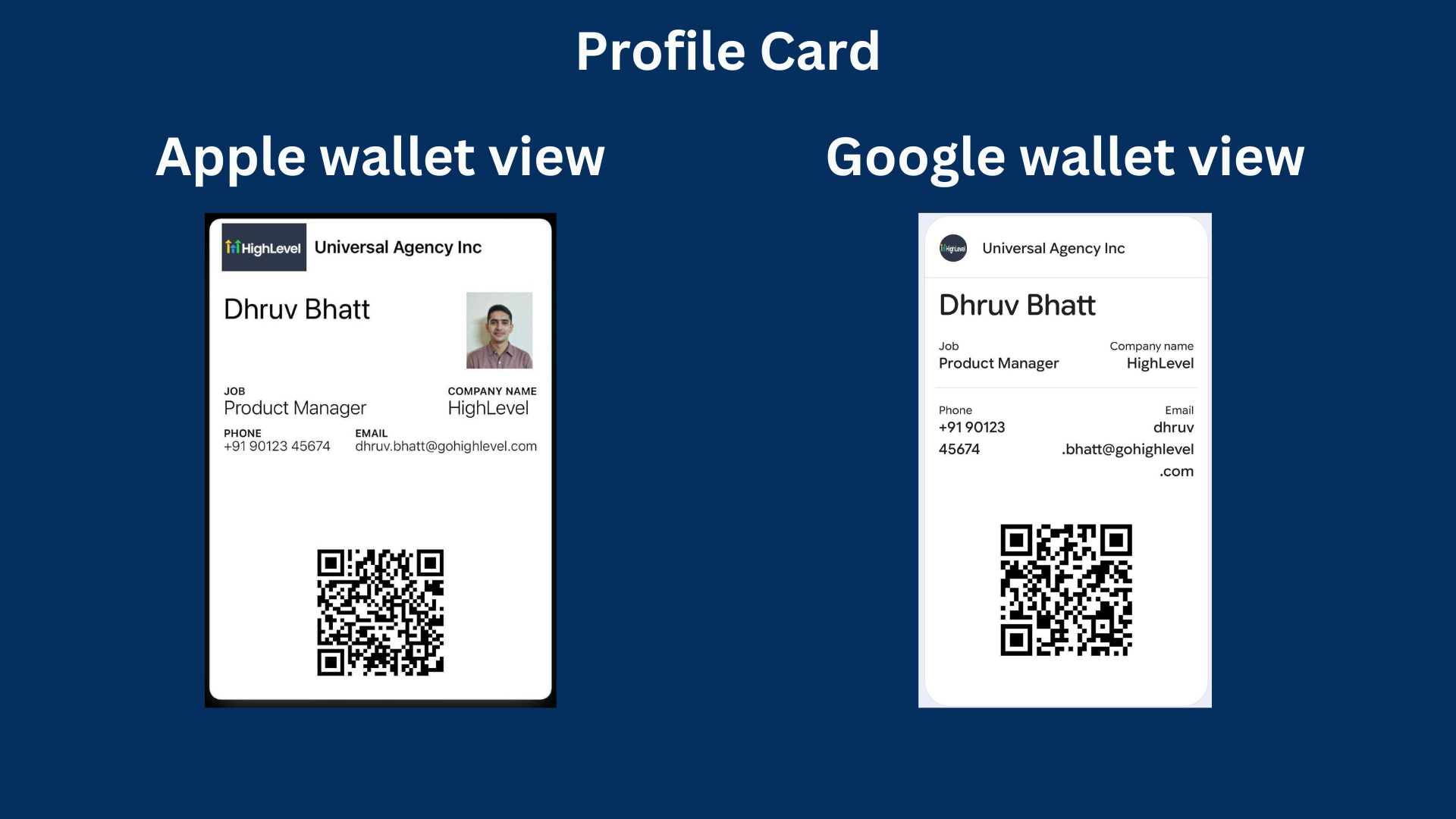
QR codes can be saved to Apple Wallet and Google Wallet
QR codes created on the platform can now be saved straight into Apple Wallet or Google Wallet from a phone, rather than living as a screenshot buried in a photo gallery. The option appears at the final step of the QR code builder for both new and existing codes: scan the prompt, and the pass lands in the relevant wallet with details on what the code is for and where it points. Wallet pass appearance differs slightly between Apple and Google depending on what each platform supports, and passes currently show your business branding in the header, with more control over that planned later. For a property services business handing out QR codes on flyers, vans or job sites, staff can pull up the right code from their wallet in seconds instead of hunting through a camera roll. More detail
Google and LinkedIn campaigns surface every validation error at once
Ad Manager now surfaces all validation issues for Google and LinkedIn campaigns together at publish time, rather than one at a time across repeated attempts. Error messages explain what needs fixing and where, clicking an error jumps straight to the relevant field, and highlighting has been improved across campaigns with multiple ads or creatives. Google campaigns get an expanded pre-publish check covering campaign fields and platform requirements, including Demand Gen assets such as images, logos, videos and headlines, while LinkedIn gains clearer validation across carousel cards. For a business running paid ads without a dedicated ads specialist on staff, seeing every fix needed in one pass before publishing means fewer failed attempts and less guessing at what went wrong. More detail
Google Demand Gen campaigns can be saved as templates
Google Demand Gen ad campaigns built in Ad Manager can now be uploaded to the Template Library, turning a working campaign into a reusable template rather than rebuilding the setup from scratch each time. The option sits in the campaign-level menu, and an uploaded campaign is saved as a draft template that can be reviewed and edited before being published for future use. This extends template library support, already available for other campaign types, to Google Demand Gen. For a business running similar ad campaigns across several locations or seasons, saving a proven campaign as a template means the next setup starts from what already works rather than a blank page. More detail
Meta Pixel tracking for Events
Events now supports Meta Pixel tracking, letting organisers follow a visitor from discovering an event through to a completed RSVP or ticket purchase. A Meta Pixel ID is added under Event Settings, with tracking configured per event across the full journey: page views, RSVP or checkout starts, form submissions, and completed orders, including free tickets. Completed ticket orders can pass order value, currency and ticket details back to Meta for measuring revenue outcomes, and session-based deduplication stops the same action being reported twice during back navigation, refreshes or payment redirects. It is available now for Events beta users under Events, then Settings, then Link and tracking. For a business running paid workshops or open days through Events, this closes the gap between ad spend and knowing which bookings it actually drove. More detail
Meta has discontinued the Instagram Explore ad placement
Meta has removed Instagram Explore Feed as a selectable ad placement in the campaign creation workflow, following its Marketing API v26 update. This is a change driven by Meta rather than a product decision, and no action is required. Campaigns already running with Explore enabled stay live and unaffected, while draft campaigns have the placement removed automatically once the ad set is saved, with delivery shifting to other eligible placements. No errors are surfaced during the transition. It is worth knowing about if you run Instagram ad campaigns, so the placement disappearing from the builder does not read as a fault. More detail
Communities and the client portal
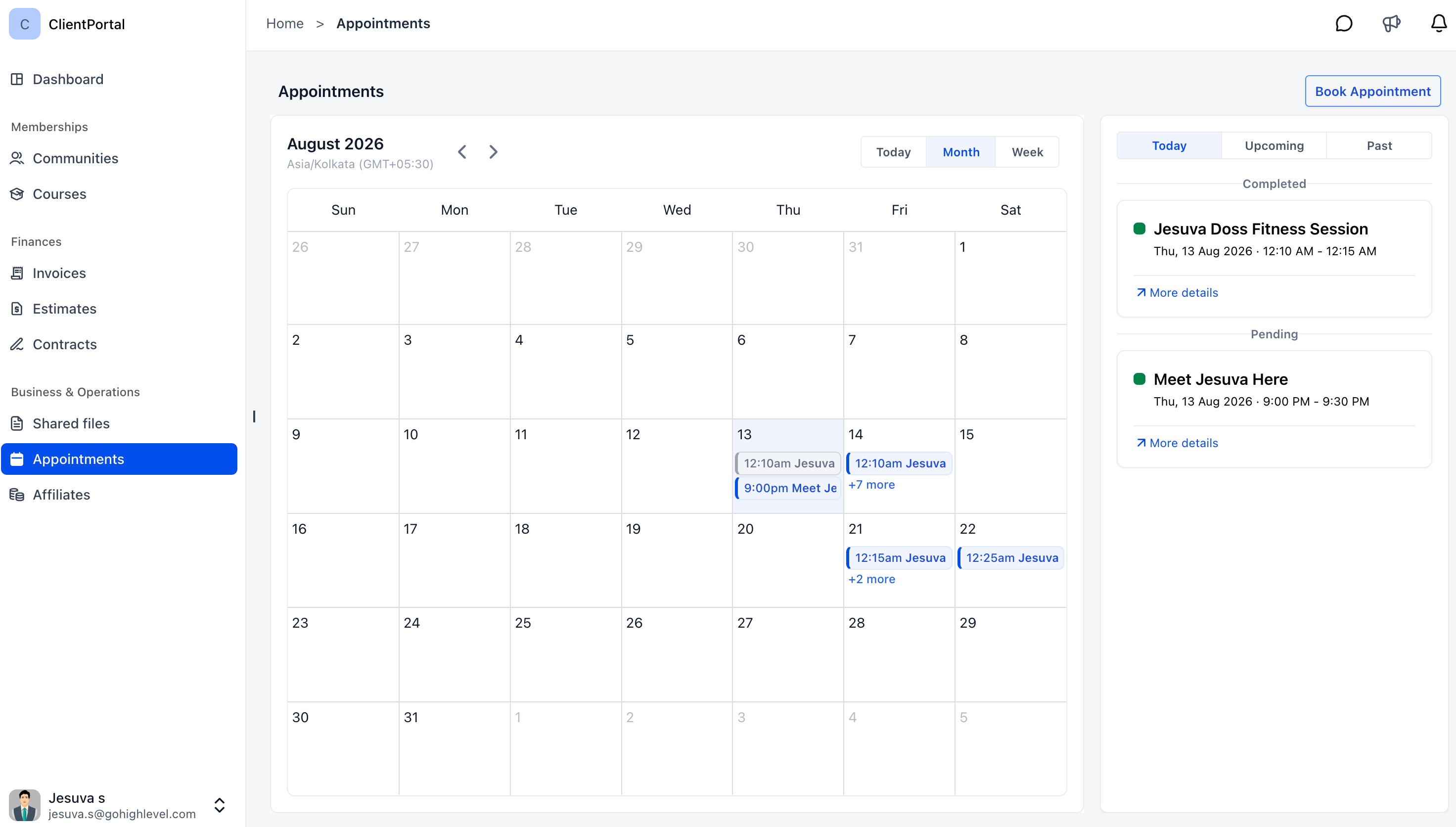
Clients can book and manage appointments in the Client Portal
Clients can now view, book, reschedule and cancel appointments directly inside the Client Portal, with Today, Upcoming and Past views plus a full calendar. Booking reuses the client’s existing contact details, and a Book Again option lets them rebook quickly after a completed appointment. Businesses choose which calendars are available for portal booking under Calendar Settings, then turn on the Appointments app under Client Portal App Permissions. It is only available in the new Client Portal interface for now. For a property services business handling repeat callouts or scheduled maintenance visits, letting clients manage their own bookings and reschedules through the portal should cut down on phone tag over appointment times. More detail
Contacts get a portal notification when an invoice or estimate is issued
Contacts using the Client Portal now get an in-app notification the moment a new invoice or estimate is issued to them, and selecting the notification takes them straight to the relevant document. It appears in the portal’s notification centre alongside other updates, and no setup is needed, since it works automatically for any contact using the portal. In-app is currently the only channel supported for this, so it will not yet trigger an email or SMS alert on its own. For a business chasing sign-off on quotes or payment on invoices, a direct nudge inside the portal should help estimates get approved and invoices get paid with less manual follow-up. More detail
Community tabs can be reordered and renamed
Community admins and owners can now reorder the tabs in a community, being Discussion, Learning, Events, Leaderboards, Members and About, by dragging them into a new order, and give any tab a custom label to match how the community talks about itself. Tabs can also be hidden if they are not needed, though Discussion and About cannot be disabled. Everything sits under Settings, then Community Tabs, and changes apply immediately for all members. Custom names display exactly as typed and are not translated. For a business running a client or team community, tab order and labels can match local terminology, such as Jobs instead of Events, rather than the platform’s defaults. More detail
Rich link and event previews in community posts
Pasting a supported link, such as YouTube or Loom, into a community post or comment now generates a rich preview automatically, with video playable straight from the feed rather than opening a new tab. Mentioning an event in a post creates an interactive card showing the event name, date, time, price and status, and members can register or RSVP from the card itself without leaving the feed. No setup is required on the admin side. For a business running client communities or team hubs, this keeps video walkthroughs and event promotion visible in the conversation itself, which should help attendance and engagement without extra admin work chasing people across to a separate events page. More detail
Formatting, moderation and shortcuts in Communities
A handful of improvements have landed for Communities. Posts now support a floating formatting toolbar for bold, italic, underline, strikethrough and links when text is selected. Moderators can ban a spammer directly from their post via the three-dot menu, with the option to delete their content at the same time, rather than searching for them under Members. Recordings attached to a post can be downloaded straight from that post. The comment editor also picks up more familiar keyboard shortcuts: Enter for a new paragraph, Shift and Enter for a line break, and Ctrl and Enter to post. For a business running a customer or trade community, moderating spam and formatting posts properly both take fewer steps than before. More detail
Payments and checkout
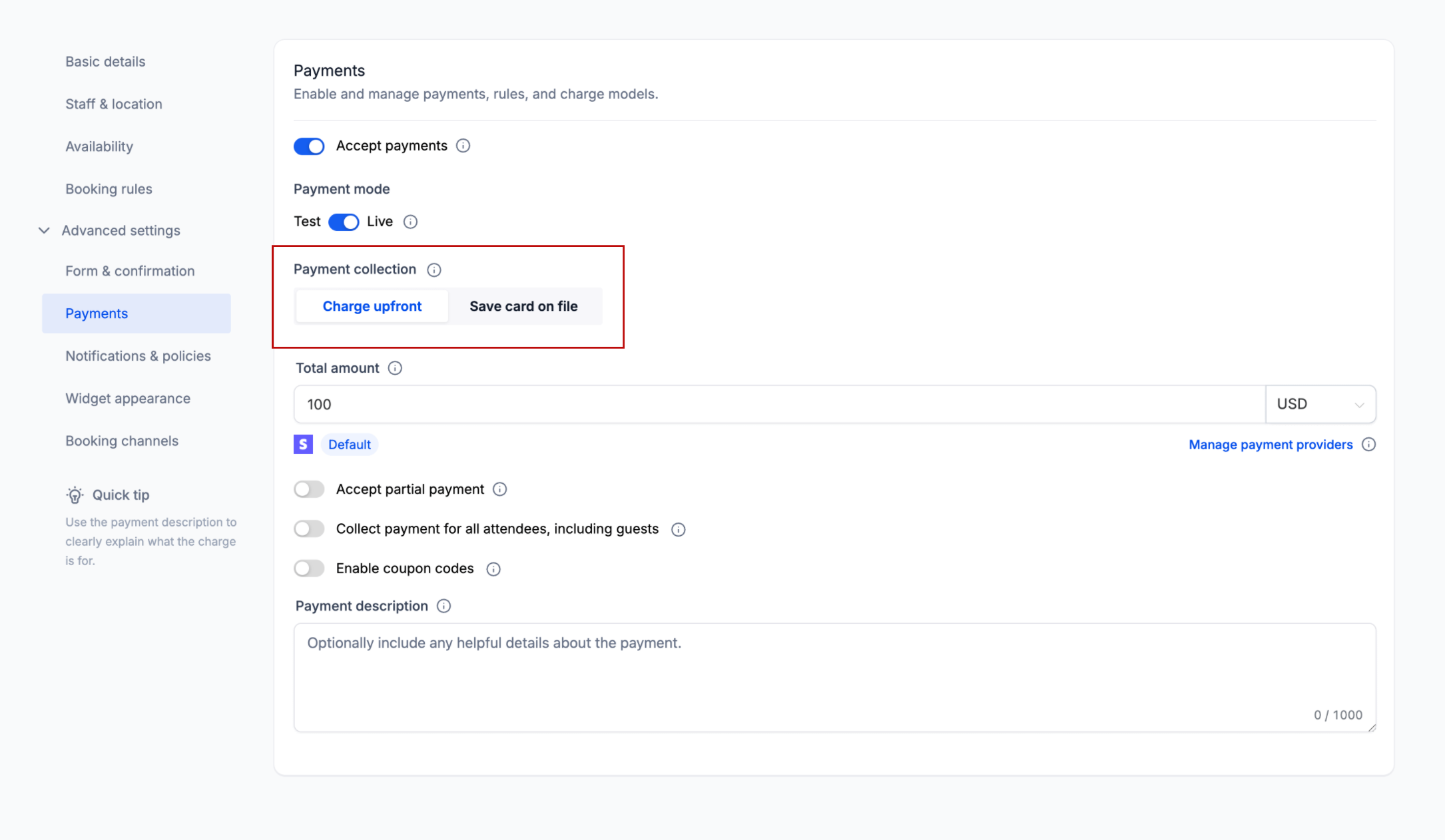
Card on file and zero-dollar bookings are now handled separately
Calendar payments now separate two situations that used to share one setting. A zero-dollar payment amount was previously the only way to collect a customer’s card without charging them, which meant a booking reduced to nothing by a discount coupon could still prompt for card details and process a zero-dollar transaction. A dedicated Collect Card on File option now saves a customer’s card without charging it or creating a payment record. Separately, when Charge Upfront is enabled, payment collection follows the final amount due: genuinely free bookings, including those taken to zero by a coupon, skip card collection entirely, while any amount above zero is collected as normal. Anyone using coupons on bookable services will see fewer confused customers asked for card details on a booking that should be free. More detail
Free orders in forms and surveys can skip the card fields
A Require card for $0 orders toggle has been added to the Sell Products element in Forms and Surveys. Switch it off and any order totalling nothing, whether from a free product or a coupon taking the price to nil, skips the payment fields and completes without asking for card details. Orders with a real balance owing, or anything recurring such as a subscription or free trial, still collect a card as before. If the total cannot be confirmed as zero the card fields stay visible, so nothing slips through by mistake. Free orders are still logged in full, and existing forms and surveys keep working as they do now, since the toggle defaults to on. For a business running free consultation bookings alongside paid services, this removes a card prompt that can put people off finishing a free enquiry. More detail
Forms, surveys and quizzes
Forms can open and close on a schedule
Forms, surveys and quizzes can now be scheduled to open and close automatically, with a custom message or a redirect shown outside the active window. Set an opening time, either right away or on a chosen date, a closing time, either never or on a chosen date, and a time zone, then decide what visitors see before launch or after the deadline passes. It is in the Schedule visibility setting on a Form, Survey or Quiz. A business running a limited-time promotion, open home registration or seasonal offer can let the form close itself on deadline, rather than relying on someone remembering to switch it off by hand. More detail
Add a batch of custom fields to a form in one go
The custom fields sidebar used when building forms, surveys and quizzes has been reworked so fields can be browsed by object type, being contact, opportunity, business or any custom object, and searched by name. Multiple fields can now be selected with checkboxes and added to the canvas together, either with an Add fields button or by dragging the whole selection across at once, landing right after whatever element was last active. Existing forms, surveys and quizzes are unaffected, and bulk-added fields go through the same validation as a single field drop. For a business building an intake form with a long list of contact and job details, adding a batch of fields together instead of one at a time cuts out a lot of repetitive setup. More detail
Contacts and reporting
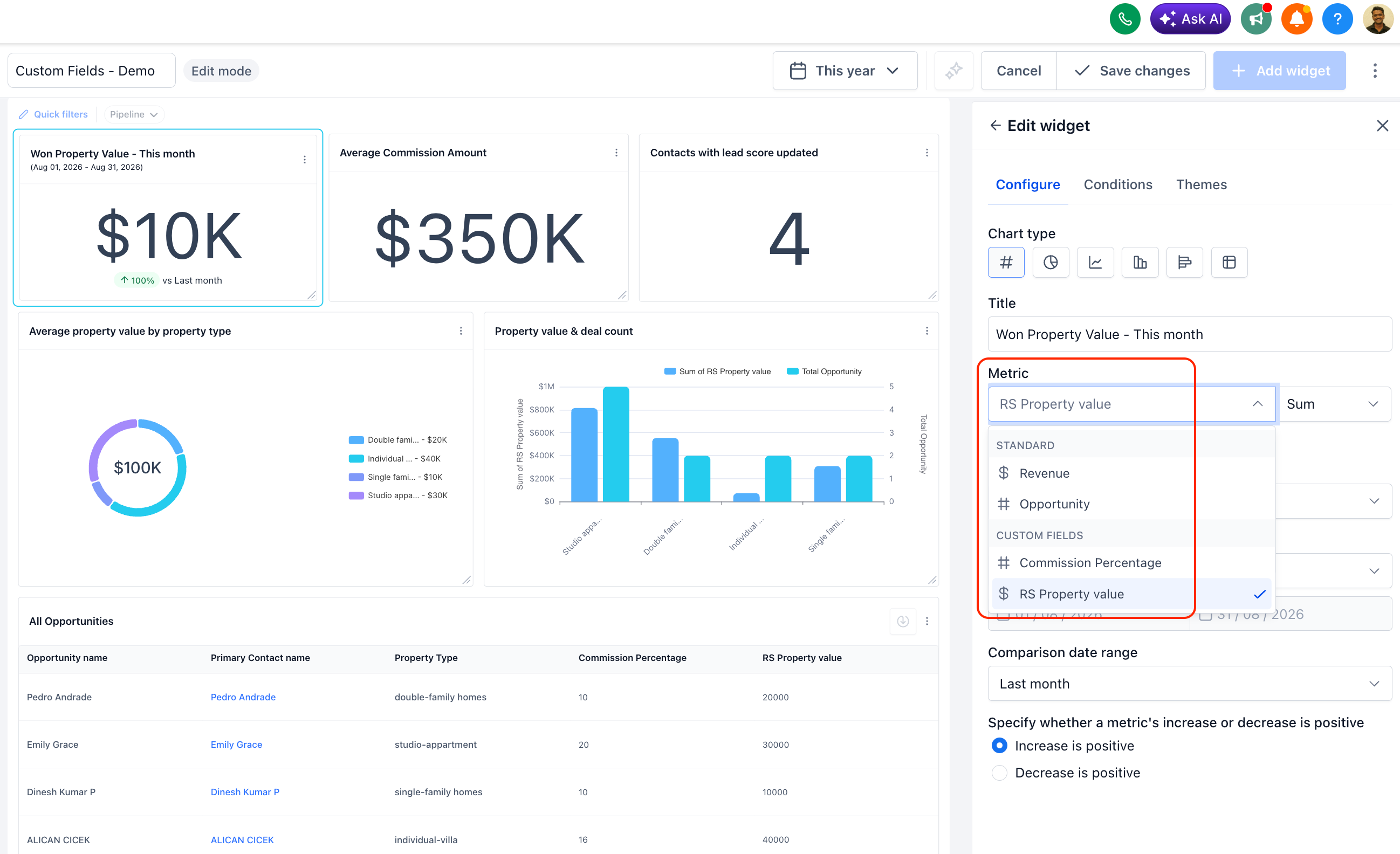
Custom fields can now be used as dashboard metrics
Numeric and monetary custom fields on contacts and opportunities can now feed directly into dashboard widgets, custom reports and the Custom Metric module, not only as filters or groupings but as proper metrics you can aggregate by sum, minimum, maximum or average. Any new numeric or monetary custom field you create is picked up automatically, so there is no extra setup before it appears in the metric picker. It sits in the Field and Aggregation dropdowns wherever metrics already live. For a property services business tracking job value, quote amount or square metres serviced, real dashboards can now be built around those numbers instead of exporting data to a spreadsheet to total them by hand. More detail
Tag categories and colours, now in Labs
Contact tags can be given a colour, either from a preset palette or a custom colour picker, so they are quicker to spot on the contact record and in Smart List columns. Tags can also be grouped into categories, with individual or bulk moves between categories, and any tag without one sits under No category by default. Existing tags carry over as grey and unassigned, so nothing breaks on rollout. This sits in Labs, so it is opt-in and may change before general release. For a business juggling tags for job status, suburb or lead source, colour coding and categories should make the contact list far quicker to scan. More detail
That is the fortnight. Missed the last one? Catch up on the 3-16 August updates.
Already a Clientflow client? If you want to know more about any of these features, or would like them deployed in your account, get in touch with your usual contact on the Clientflow team.
Not yet a client? Book a call with the team, or see the full feature set on the platform capabilities page.
Clientflow is built on the HighLevel platform, delivered with Australian onboarding, support and expert implementation. Read how that works on our GoHighLevel Australia page.


